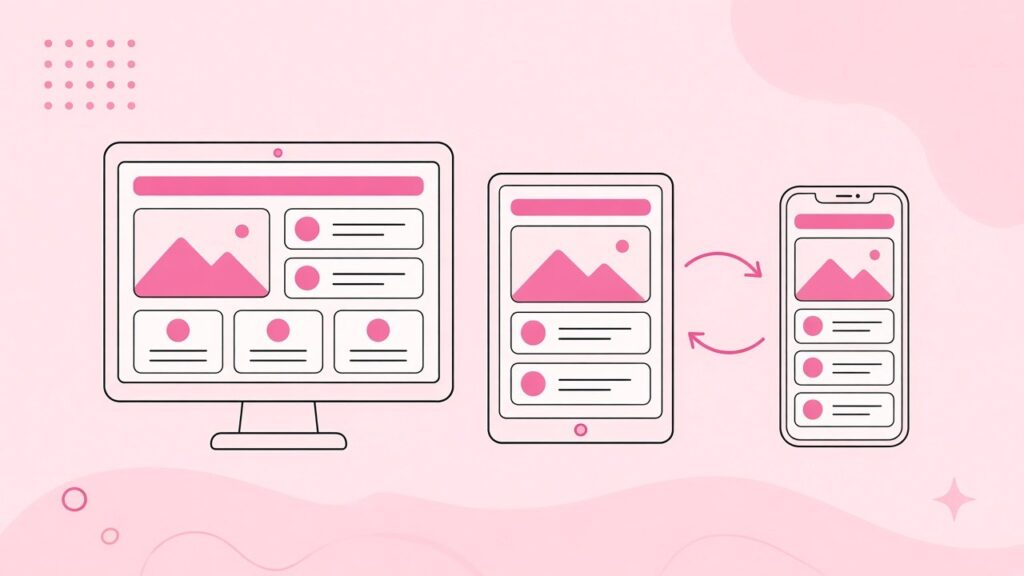

Most Elementor mobile problems come from desktop settings carrying down to mobile: fixed widths, large padding, oversized fonts, absolute positioning or rows that don’t wrap. Fix them in Elementor’s responsive mode by setting values for mobile, using flexible units (%, vw, rem), letting containers wrap or stack, and testing on real devices, not just the editor preview.
Need it fixed fast? Our specialists can fix your Elementor mobile layout at a fixed price.
How Elementor Responsive Settings Work (30-Second Primer)
- Elementor has responsive mode (the device icons in the top bar). Settings with a device icon can have different values per device.
- Values cascade down: desktop values apply to tablet and mobile unless you override them. That’s why a desktop tweak can break mobile.
- Default breakpoints are mobile and tablet. You can add mobile extra, tablet extra, laptop and widescreen under Site Settings > Layout > Breakpoints.
Fix 1: Horizontal Scrolling (the Page Moves Sideways)
The most common mobile bug. Something is wider than the screen.
How to find it:
- Open the page in Chrome, press F12 and switch to device mode. Scroll sideways and look for the element sticking out.
- Common culprits: elements with fixed pixel widths, negative margins, entrance animations that slide in from the side, wide images or embeds, and absolutely positioned decorations
How to fix it:
- Replace fixed widths with % or max-width values on mobile
- Remove negative margins on mobile
- Change “slide in from right/left” entrance animations to fade on mobile, or remove them
- As a last resort, set Overflow: Hidden on the parent container. Treat this as a patch, not a cure.
Fix 2: Text Too Big or Overflowing
Headings sized for desktop (for example 64px) overflow on a 375px-wide phone.
- Set mobile-specific font sizes in responsive mode, or define them once in Site Settings > Global Fonts, which is much faster than fixing every widget
- Use relative units or fluid sizing with clamp() via custom units, where your Elementor version supports it
- Check long words (URLs, email addresses, German compound words), which can force overflow. Add word-break CSS if needed.
Fix 3: Columns Not Stacking or Stacking in the Wrong Order
- Containers (Flexbox): On mobile, set Direction to Column, or keep Row and enable Wrap with child widths of 100%
- Wrong order (for example, image before text on alternating rows): use Direction: Column Reverse, or set the Order option on child elements for mobile
- Old sections and columns: Use the “Reverse Columns” option for mobile, or consider converting to containers
Fix 4: Too Much Padding and Margin
Desktop padding of 120px on a container leaves almost no room on mobile.
- Set mobile padding and margin values separately (for example 20-40px vertical, 16-20px horizontal)
- Use Site Settings > Layout for consistent default container padding
- Check nested containers, because padding adds up at each level
Fix 5: Elements Hidden or Duplicated for Mobile
Many sites use “Responsive > Hide on Mobile” and build a separate mobile version of each section. It works, but:
- Both versions are still in the HTML, so the page gets heavier and slower
- Content gets out of sync when someone edits only one version
- Duplicate headings can confuse screen readers and SEO
Better: Build one responsive version and adjust it per device. Keep Hide on Mobile for genuinely device-specific elements only.
Fix 6: Broken Mobile Menu
- Use the Nav Menu or Menu widget’s mobile dropdown/hamburger settings, and set the breakpoint where it switches to the hamburger
- If the menu opens behind other content, raise its z-index
- If the dropdown is cut off, check for Overflow: Hidden on the header container
- Make sure tap targets are large enough and links are spaced apart, for both usability and Lighthouse checks
Fix 7: Images Stretched, Cropped or Blurry
- Avoid fixed heights on images on mobile. Use auto height or an aspect ratio.
- For background images, set Background Size: Cover and adjust Position per device so the focal point stays visible
- Use appropriately sized images. Serving a 2,500px image to phones is slow. See speed optimization.
Fix 8: Absolute-Positioned Elements Flying Around
Decorative shapes and badges set to Position: Absolute at desktop coordinates end up in the wrong place on mobile.
- Set different offsets for mobile, or switch the position to Default on mobile
- Hide purely decorative elements on mobile if they add nothing
Fix 9: The Editor Preview Looks Fine but Real Phones Don’t
The Elementor preview approximates devices. Real phones differ:
- Cache: Your caching plugin or CDN may serve an old CSS file. Clear Elementor’s files (Elementor > Tools > Clear Files & Data) and all caches.
- Separate mobile cache: Some caching setups serve a separate mobile version. Clear it too, or turn it off if your site is fully responsive.
- Browser differences: Test in Safari on an iPhone and Chrome on Android
- Custom breakpoints: If you added custom breakpoints, check every width between them, not just the presets
Fix 10: Mobile Speed and Core Web Vitals
Since Google indexes the mobile version of your site, mobile speed matters for rankings and conversions.
- Reduce DOM size by using containers instead of nested sections
- Don’t lazy-load the main hero image
- Limit animations, sliders and video backgrounds on mobile
- Delay chat widgets and third-party scripts
See also: Elementor not loading? 12 fixes and our Elementor speed optimization service.
A Mobile QA Checklist Before You Publish
- No horizontal scroll at 360px, 375px, 390px and 414px widths
- Headings fit without awkward breaks
- Buttons and links are easy to tap
- Forms are usable, with the right keyboard type for email and phone fields
- The menu opens, closes and scrolls
- Images aren’t stretched and focal points are visible
- Pop-ups can be closed on small screens
- Tested on at least one real iPhone and one Android phone
When to Fix It vs Rebuild It
If your site was built years ago with deeply nested sections, many duplicate hide-on-mobile blocks and multiple add-ons, patching every page can cost more than a clean rebuild with containers. An Elementor website redesign keeps your URLs and SEO while fixing mobile for good.
Set These Global Settings Once (and Save Hours)
Most mobile problems repeat across every page. Fix them once at the site level:
- Global Fonts: Set H1-H6 and body sizes for desktop, tablet and mobile in Site Settings > Global Fonts, then use the global styles in every widget instead of custom sizes
- Container defaults: Set default container padding and content width in Site Settings > Layout
- Breakpoints: Decide your breakpoints before building. Adding them later means rechecking every page.
- Global Classes and Variables (Elementor 4): On sites built with the Atomic Editor, define spacing and typography as classes or variables, so one change updates every page on every device
- Buttons and forms: Style buttons and form fields globally with mobile-friendly sizes
Mobile Accessibility Basics
A mobile-friendly site is also an accessible one:
- Body text of at least 16px on mobile, so users don’t need to zoom
- Enough colour contrast between text and background, including text over images
- Tap targets that are large and well spaced
- Users can zoom (don’t disable pinch-zoom)
- Form fields with visible labels, not just placeholder text
- Pop-ups that are easy to close and don’t cover the whole screen on load
These improvements help users, reduce bounce rates and support your SEO.
Need an Elementor specialist? Get a free quote, ask for a free site audit or chat with us on WhatsApp. We reply within 1-3 hours. Using a specific theme? Find it in our Themes A to Z directory.
Frequently Asked Questions
Why does my Elementor site look different on mobile?
Desktop settings like fixed widths, large padding and big font sizes cascade down to mobile unless you override them in responsive mode. Caching can also serve old CSS to phones.
How do I stop horizontal scrolling in Elementor on mobile?
Find the element that’s wider than the screen using browser developer tools, then replace fixed widths, remove negative margins or side-sliding animations on mobile. Overflow: Hidden on the parent container is a last-resort patch.
How do I change the order of columns on mobile in Elementor?
With containers, set the mobile Direction to Column Reverse or use the Order option on child elements. With older sections, use the Reverse Columns setting for mobile.
How do I add custom breakpoints in Elementor?
Go to Site Settings > Layout > Breakpoints and enable additional breakpoints such as mobile extra, tablet extra, laptop and widescreen. Then set each one’s width.
Should I use “Hide on Mobile” to build a separate mobile layout?
Only sparingly. Hidden elements still load, making pages heavier, and duplicate content goes out of sync. Building one responsive layout is better for speed, SEO and maintenance.
Get Your Mobile Layout Fixed
Send us your URL and the pages that break on mobile. You’ll get a fixed price to fix them, usually within 24 hours.